---
title: "GNU Screen"
date: 2017-06-01
created: 2017-06-01T00:00:00Z
type: blog
status: settled
publish: [ddrscott]
source: import
image: /images/gnu-screen-featured.jpg
prompt: "Import from blog post: 2017/gnu-screen.markdown"
---
# GNU Screen
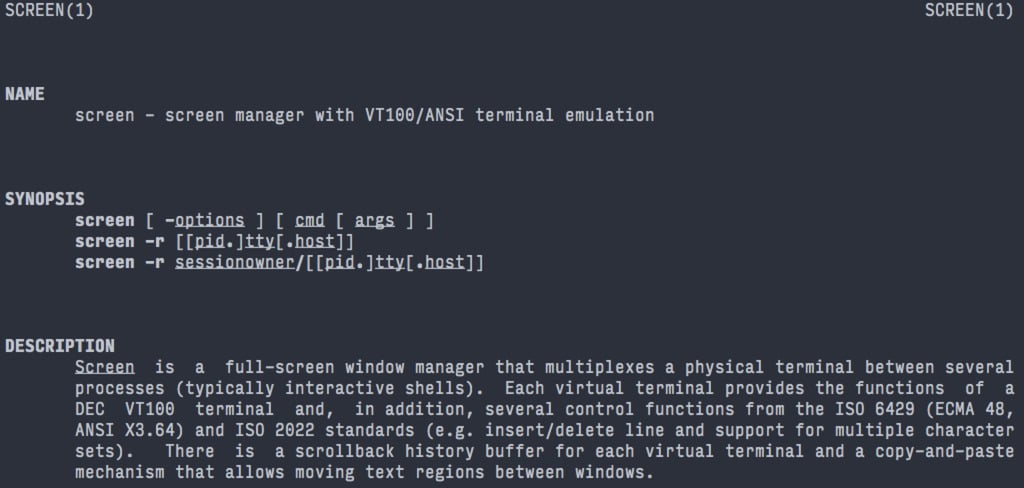 > Screen is a full-screen window manager that multiplexes a physical terminal
> between several processes, typically interactive shells.
TL;DR - Screen keeps your ssh sessions alive on a host.
## Installation
Most servers have `screen` installed already. If they don't it can be installed
via `apt-get install screen`, `yum install screen`, `brew install screen`. Sorry
Windows, try Remote Desktop.
## Startup
Get a terminal on a remote host (or local) then run `screen`
```sh
screen
```
If you're not brave, try `man screen` to read more about.
Once `screen` has started, you'll want to remember `?`. That is how you get
the screen options menu. It's typed literal hold `CTRL` and press `a`. To quit
the `screen` app, type `exit`. To keep `screen` running, type `d` to detach
from the program. To reattach to that session try `screen -x`.
## Options
There are tons of options and they're best found by reading the `man` page or
Googling `gnu screen shortcuts`. Here's some of my favorites.
### Startup Flags
- `screen -DDR`. Force others of the current session and reattach yourself.
- `screen -x`. Reattach yourself, but allow others to stay in. This is
cooperative mode. Good for pairing and much faster than GUI screen sharing.
### Control Keys
- ``. Create a "tab" to have multiple sessions.
- ``. Toggle to previous session.
- ``. Switch next session.
- `a`. Send a literal `` back to shell.
### Config File and Pretty Colors
It's easy to get lost in screen without a status line. So creating this file in
your home directory will help.
**~/.screenrc**
```text
hardstatus alwayslastline
hardstatus string '%{= kG}[ %{G}%H %{g}][%= %{= kw}%?%-Lw%?%{r}(%{W}%n*%f%t%?(%u)%?%{r})%{w}%?%+Lw%?%?%= %{g}][%{B} %m-%d %{W}%c %{g}]'
```
This should give you a pretty statusline at the bottom of your terminal.
Here's what it looks like:
> Screen is a full-screen window manager that multiplexes a physical terminal
> between several processes, typically interactive shells.
TL;DR - Screen keeps your ssh sessions alive on a host.
## Installation
Most servers have `screen` installed already. If they don't it can be installed
via `apt-get install screen`, `yum install screen`, `brew install screen`. Sorry
Windows, try Remote Desktop.
## Startup
Get a terminal on a remote host (or local) then run `screen`
```sh
screen
```
If you're not brave, try `man screen` to read more about.
Once `screen` has started, you'll want to remember `?`. That is how you get
the screen options menu. It's typed literal hold `CTRL` and press `a`. To quit
the `screen` app, type `exit`. To keep `screen` running, type `d` to detach
from the program. To reattach to that session try `screen -x`.
## Options
There are tons of options and they're best found by reading the `man` page or
Googling `gnu screen shortcuts`. Here's some of my favorites.
### Startup Flags
- `screen -DDR`. Force others of the current session and reattach yourself.
- `screen -x`. Reattach yourself, but allow others to stay in. This is
cooperative mode. Good for pairing and much faster than GUI screen sharing.
### Control Keys
- ``. Create a "tab" to have multiple sessions.
- ``. Toggle to previous session.
- ``. Switch next session.
- `a`. Send a literal `` back to shell.
### Config File and Pretty Colors
It's easy to get lost in screen without a status line. So creating this file in
your home directory will help.
**~/.screenrc**
```text
hardstatus alwayslastline
hardstatus string '%{= kG}[ %{G}%H %{g}][%= %{= kw}%?%-Lw%?%{r}(%{W}%n*%f%t%?(%u)%?%{r})%{w}%?%+Lw%?%?%= %{g}][%{B} %m-%d %{W}%c %{g}]'
```
This should give you a pretty statusline at the bottom of your terminal.
Here's what it looks like:
 ## TMUX
A strong competitor to `screen` is `tmux`. It has a more modern code base and is
actively maintained. The reason I personally don't use it is out of habit and
it's not installed everywhere. `screen` just works for my work flow.
## References
- https://www.gnu.org/software/screen/
- http://www.pixelbeat.org/lkdb/screen.html
- http://aperiodic.net/screen/quick_reference
## TMUX
A strong competitor to `screen` is `tmux`. It has a more modern code base and is
actively maintained. The reason I personally don't use it is out of habit and
it's not installed everywhere. `screen` just works for my work flow.
## References
- https://www.gnu.org/software/screen/
- http://www.pixelbeat.org/lkdb/screen.html
- http://aperiodic.net/screen/quick_reference